 Note
Note
Creating the Inxmail Professional campaign activity also automatically creates a mailing list in Inxmail Professional (see Creating an Inxmail Professional campaign activity).
Step by step
To open a mailing list, proceed as follows:
- Start Inxmail Professional and log in with your login data.
-
Click the
 List overview entry on the main tab
  (Cockpit).
You will be directed to the overview of mailing lists. An overview of all mailing lists to which you have access appears.

- Double-click the mailing list name in the overview to open the required mailing list.
-
The mailing list appears on its own tab.

Additional information
The  Properties agent of the mailing list contains the reply and sender email address details set up in the campaign activity, for example (see Creating an Inxmail Professional campaign activity).
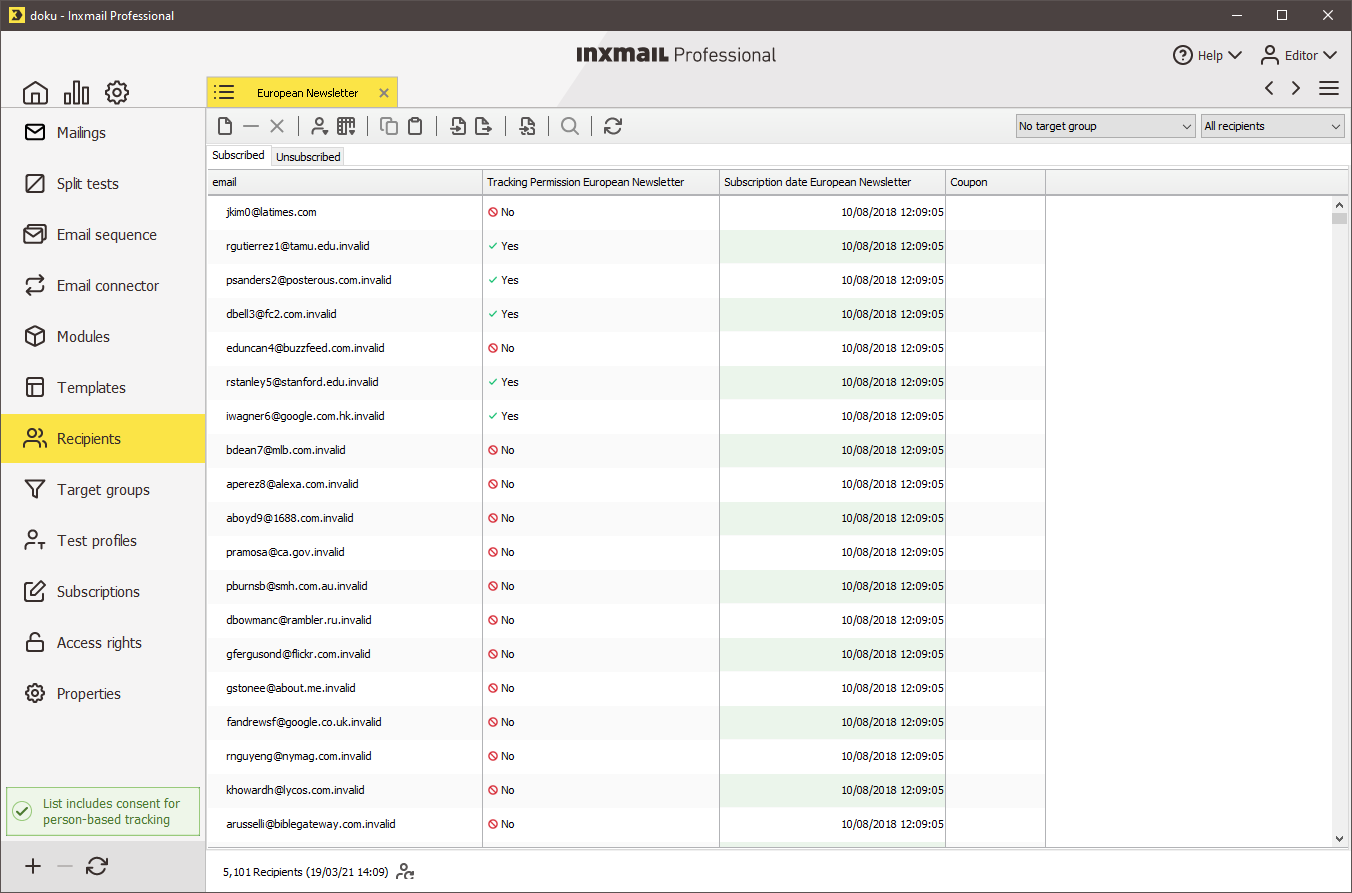
To check whether the recipient transfer was successful, that is, whether all the contacts, leads and accounts were subscribed to the mailing list as recipients, click the  Recipients agent > Subscribed tab on the tab of the mailing list.
All the recipients in the mailing list are displayed.
Related topics

