|
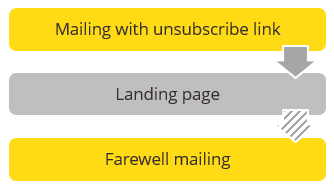
Description of unsubscribe procedure step |
Necessary settings |
|---|---|
|
The recipient clicks the unsubscribe link. |
Set up single opt-out unsubscribe procedure for the mailing list (Unsubscription setup) Insert an unsubscribe link (in your mailing, Using unsubscribe links, or on your web page, for example, the JSP templates ‘Cancel subscription’ and ‘Confirm unsubscribe’) |
|
A landing page informs the recipient that they have successfully unsubscribed from the mailing list and their data has been deleted. |
Create a landing page (either manually or using the JSP ‘Cancel subscription’ template in Inxmail Professional, JSP templates ‘Cancel subscription’ and ‘Confirm unsubscribe’) |
|
Optional: The recipient receives a farewell mailing. |
Optional: Customise, approve and activate a farewell mailing (Displaying, sorting and filtering the subscribe/unsubscribe mailings table). |
Inxmail Professional:
2 possible use cases
Depending on your contract, you might use Inxmail Professional in different ways:
 Learn more
-
As part of the Inxmail platform: You use newsletters & campaigns as your main tool for creating and sending newsletters. Inxmail Professional only serves as a recipient database and configuration tool in the background.
We are constantly expanding the functionality of “Newsletters & Campaigns”. Check out newsletters & campaigns section to find out if the feature you are looking for might already be available there.
-
Full scope: You use the legacy tool Inxmail Professional as your main tool for creating and sending newsletters.
Did you not find what you were looking for?
-
Send us your feedback.
