Prerequisites
The  Target groups agent is displayed on the tab where you would like to create a new target group (Adding/deleting additional agents to/from mailing lists).
Important: Please note that this agent differs from other agents in the following respect: If you remove the Target groups agent from the tab of a mailing list, all the target groups created for this mailing list will be automatically deleted.
Step by step
-
Open the Create new target group dialog box as follows:
- To create a new target group that will only be available for one particular mailing list, click the tab of the mailing list > Target groups agent. Then click the
 (Create new target group) button.
 - To create a global target group that will be available for all mailing lists, click the
 (Global settings) tab > Target groups agent. Then click the (Create new target group) button.
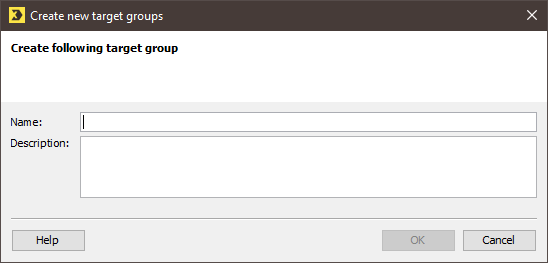
A dialog box appears.
- To create a new target group that will only be available for one particular mailing list, click the tab of the mailing list >
- In the dialog box, enter a name for the target group (for example, ‘Men with a building loan contract’).
- You have the option to enter a description of the target group. This will be displayed in the target groups overview.
- Confirm the dialog box by clicking OK.
- You have now created a new target group.
Additional information
The target group will open in a tab for editing or checking.
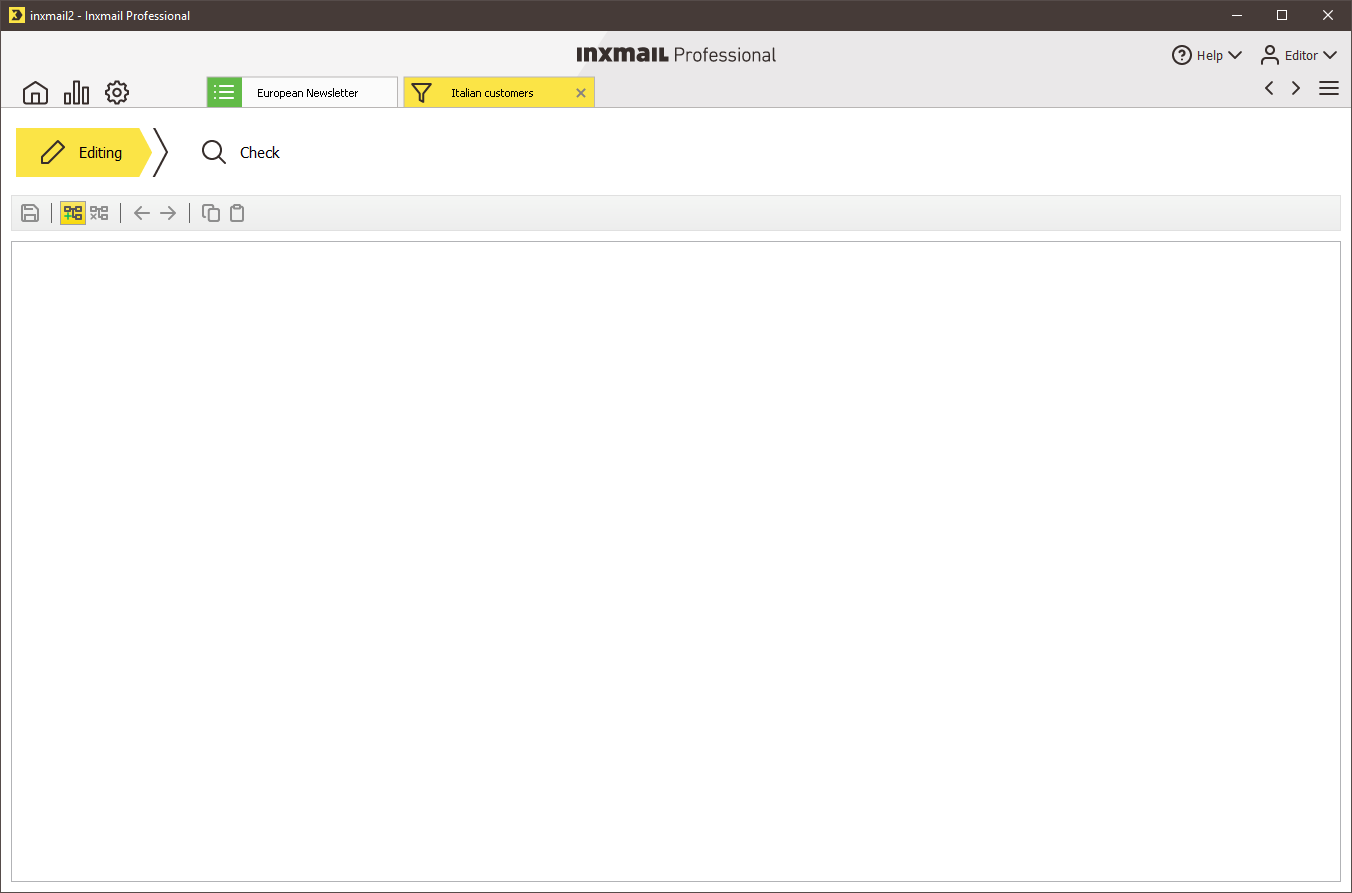
You now have the following possibilities:
- Create conditions in order to restrict the recipients in the Editing workflow step
- Check the selected recipients in the Check workflow step
- Close tab.
You can select an existing target group in the table and:
-
make a copy using the
 (Copy) and
  (Paste) buttons.
Please note that any existing target group conditions will also be copied and pasted.
- delete the target group by clicking the
 (Delete target group) button.
 - rename the target group by clicking the
 (Rename target group) button.
Please note that deleting or renaming a target group can cause problems if the target group is used in a mailing that has already been created or one that is scheduled to be dispatched.
Related topics
Inxmail Professional:
2 possible use cases
Depending on your contract, you might use Inxmail Professional in different ways:
 Learn more
-
As part of the Inxmail platform: You use newsletters & campaigns as your main tool for creating and sending newsletters. Inxmail Professional only serves as a recipient database and configuration tool in the background.
We are constantly expanding the functionality of “Newsletters & Campaigns”. Check out newsletters & campaigns section to find out if the feature you are looking for might already be available there.
-
Full scope: You use the legacy tool Inxmail Professional as your main tool for creating and sending newsletters.
Did you not find what you were looking for?
-
Send us your feedback.
