Apple Mail Privacy Protection: If your recipients have Apple Mail Privacy Protection enabled, the email client will automatically download all the images contained in your mailing (including tracking pixels) after they receive it. Since openings in email marketing can only be recorded indirectly through the mailing images being downloaded, manual openings cannot be recorded if they are opened at a later date.
As of version 4.8.35, Inxmail Professional counts these automatic image downloads as not being opened in the metrics based on openings.
The  Analysis workflow step within a split test mailing or split test object is only enabled when the split test has the status Current version dispatch status.
Mailings agent
In the  Mailings agent > Split test mailings, a visual link analysis is generated in the Analysis workflow step.
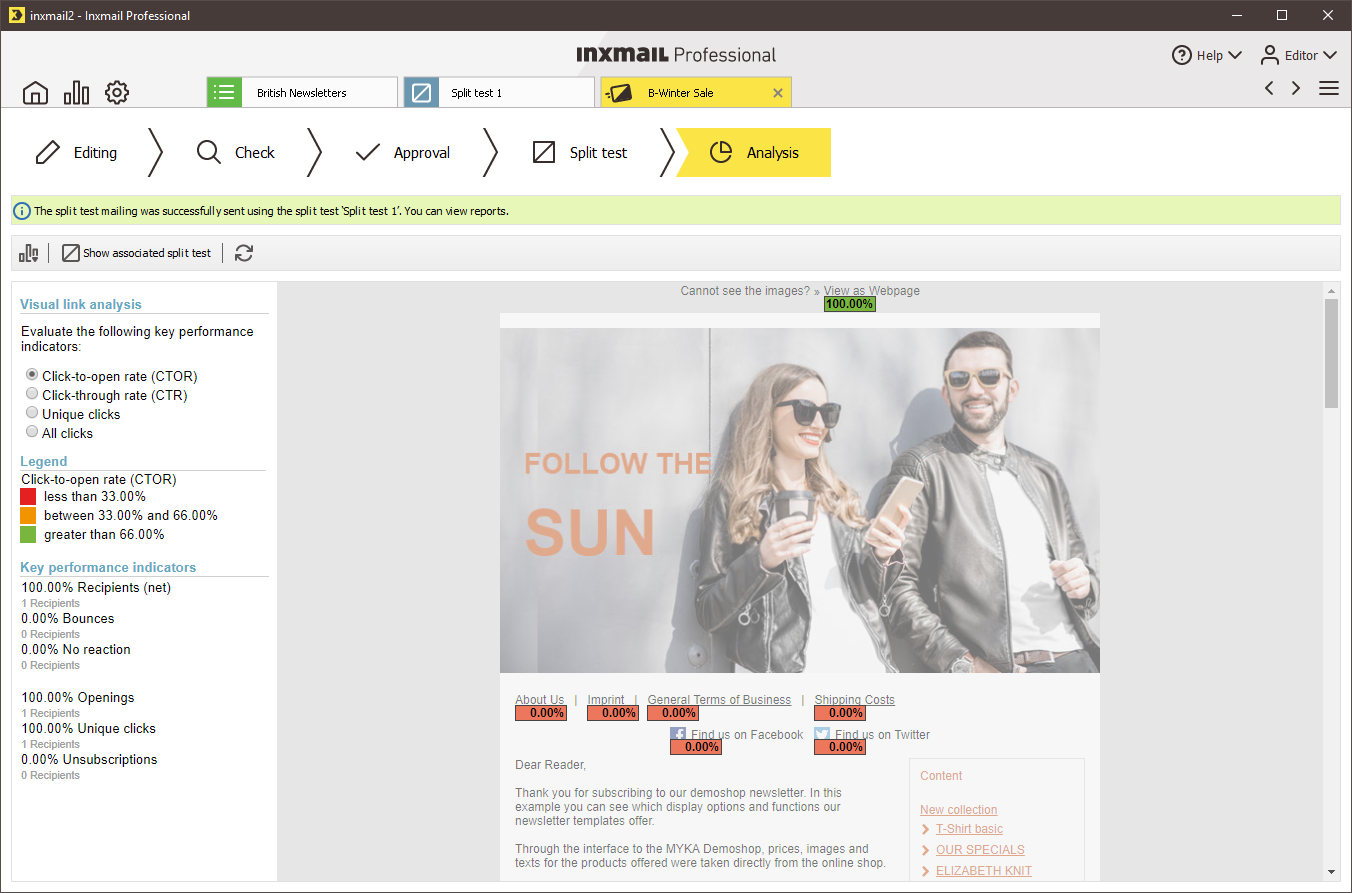
This report graphically displays the links that recipients clicked (and how often). The analysis is generated for the recipient currently selected in the  Check workflow step using the Contents button. In the area on the left, you can configure the key performance indicators for which the visual link evaluation should be generated.
| Key figure for report | Description |
|---|---|
| Click-to-open rate (CTOR) (%) | Unique clicks/Number of times opened |
| Click-through rate (CTR) (%) related to graphic call-ups | Unique graphic call-ups/Number of net recipients |
| Unique clicks | Number of recipients who clicked the tracked link at least once |
| All clicks | Total number of clicks of the tracked link, including multiple clicks |
| Recipients (net) | Number of recipients who actually received the mailing (without delivery errors such as hard bounces) |
| Bounces | Number of hard and soft bounces for a mailing dispatch |
| Openings (%) | Number of opening recipients/Number of net recipients |
| Unsubscriptions (%) | Number of unsubscribe clicks/Number of net recipients |
Explanation for determining colour identification The threshold value for grouping into the corresponding colour category is a third of the CTOR of the most frequently clicked link. Red therefore means that the corresponding links were clicked less than a third as often as the most frequently clicked link. Yellow means between one and two thirds, and green means more than two thirds.
Split tests agent
In the  Split tests agent, a report is generated in the Analysis workflow step of a selected mailing. This report uses key performance indicators to show how well the individual mailing versions were received.
The report header contains the basic data of the split test (list name, name of the split test, split test type, etc.); all mailing versions and, if applicable, the winning version are displayed under Associated mailings.
All important key figures for the sent mailing versions and, if applicable, the winning version appear in the Key performance indicators table.
Inxmail Professional:
2 possible use cases
Depending on your contract, you might use Inxmail Professional in different ways:
 Learn more
-
As part of the Inxmail platform: You use newsletters & campaigns as your main tool for creating and sending newsletters. Inxmail Professional only serves as a recipient database and configuration tool in the background.
We are constantly expanding the functionality of “Newsletters & Campaigns”. Check out newsletters & campaigns section to find out if the feature you are looking for might already be available there.
-
Full scope: You use the legacy tool Inxmail Professional as your main tool for creating and sending newsletters.
Did you not find what you were looking for?
-
Send us your feedback.
