
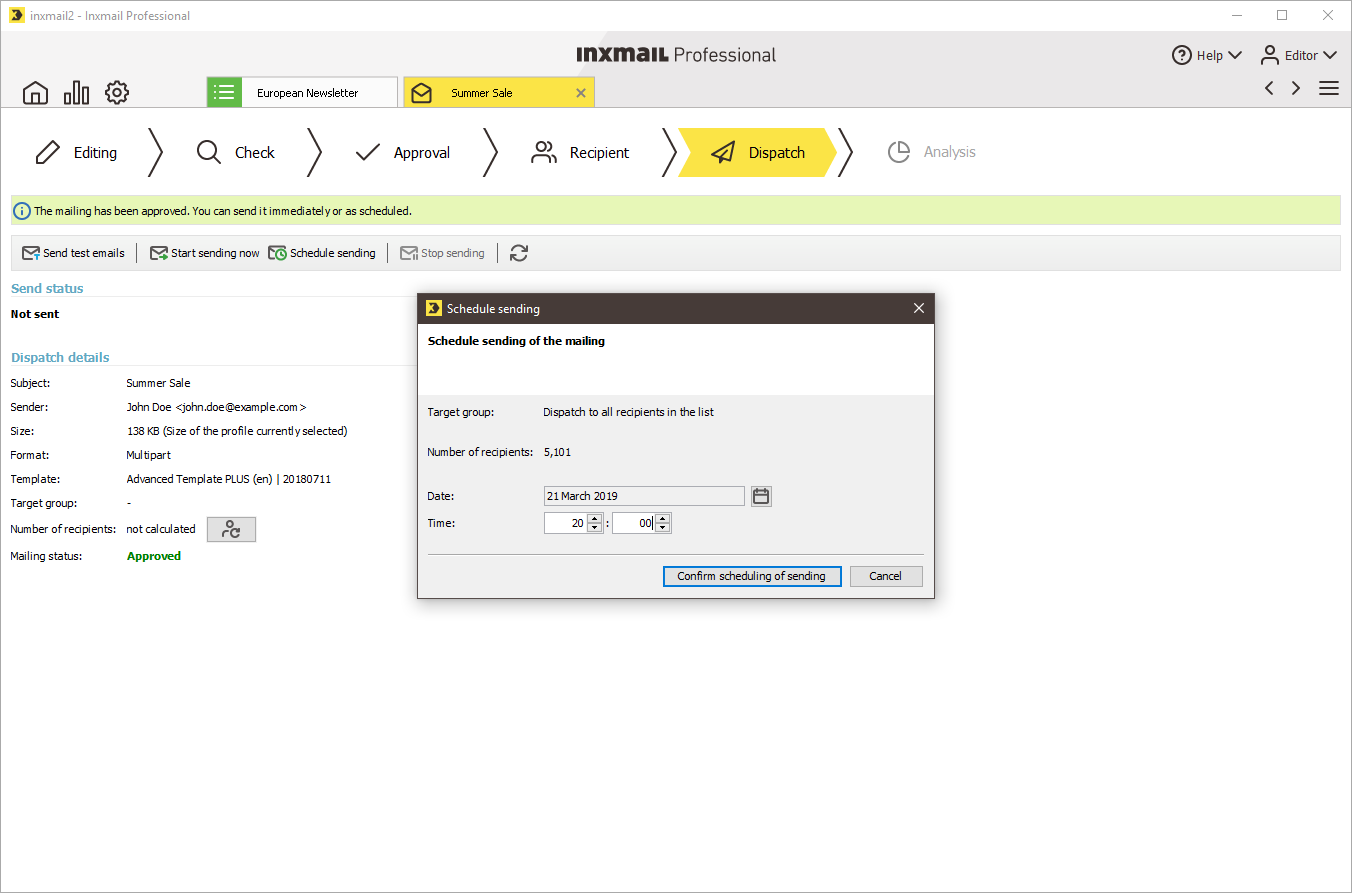
After fully testing the mailing, approving it and selecting the recipients, you can configure the sending of your mailing. To do this, go to the  Dispatch workflow step.
Using the  (Send test emails) button on the toolbar, you can send the mailing to yourself and others for test purposes. Note that configured link tracking does not work in the test email.
You can send your mailing immediately by clicking the  Start sending now button. Or you can schedule a time for sending using the
  Schedule sending button. The sending details are summarised in the lower area.
The closed envelope icon pointing diagonally upwards and the dimmed mailing editor both indicate that your mailing has been sent. A clock icon appears if send times were scheduled. If you additionally select a target group, a filter icon appears above the clock icon.
Related topics
Inxmail Professional:
2 possible use cases
Depending on your contract, you might use Inxmail Professional in different ways:
 Learn more
-
As part of the Inxmail platform: You use newsletters & campaigns as your main tool for creating and sending newsletters. Inxmail Professional only serves as a recipient database and configuration tool in the background.
We are constantly expanding the functionality of “Newsletters & Campaigns”. Check out newsletters & campaigns section to find out if the feature you are looking for might already be available there.
-
Full scope: You use the legacy tool Inxmail Professional as your main tool for creating and sending newsletters.
Did you not find what you were looking for?
-
Send us your feedback.
