The approval process includes the following main steps:
- Create mailing (editor)
- Request approval (editor)
- Approve or reject mailing (approver)
- Send mailing (editor)
If the approver has denied approval, the editor must make any necessary changes to the mailing and start the approval process again.
The approval process can be illustrated graphically as follows:
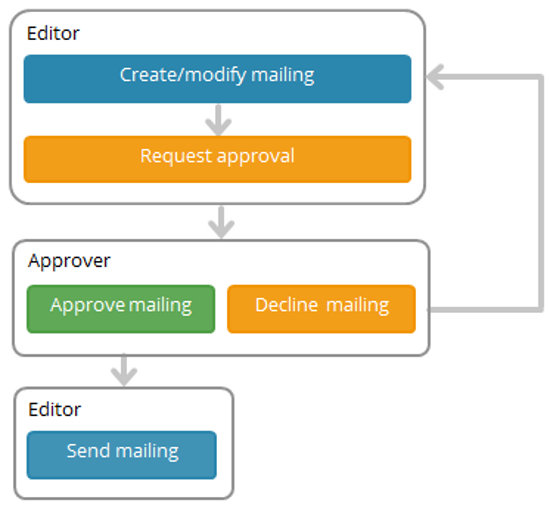
Below is a detailed explanation of the individual approval steps:
-
Create and check mailing content
The editor creates and checks the mailing in Inxmail Professional.
The editor can also schedule the mailing for dispatch. The mailing will, however, not be sent until approval is granted.
-
Requesting approval
When the mailing is ready to be sent, the editor can request approval in Inxmail Professional. Either the preconfigured values or individually specified values may be used for the following settings:
- Approval type
- Approver
- Approval time period
The editor may optionally also select profiles through which the approvers can later, for example, view a personalised version of the mailing. Notes may also be left for the approvers.
After the approval request has been sent, the editor waits for a reaction from the approvers.Email addresses entered in Inxmail Professional are used to send emails during the approval process, that is:
- the editor email addresses entered on the
 (Global settings) tab >
  Users agent
 - the approver email addresses entered in the
 Properties agent
-
Approve or reject mailing
The approvers receive an email with a link to the approval web page. The approvers can then view the mailing and any comments left by the editor. The approvers can either reject or approve the mailing. They may also leave notes for the editor.
If none of the selected approvers respond before this deadline, the approval request is void and the mailing status is set to ‘Not approved’. The editor must then request approval again.
The editor receives an email regarding the decision made by the approver. The approver's decision may also be viewed in the approval history in Inxmail Professional.
-
Send mailing
If the mailing was approved, the editor may then send it. If the mailing was not approved, the editor must make any necessary changes and then restart the approval process.
Related topics
Inxmail Professional:
2 possible use cases
Depending on your contract, you might use Inxmail Professional in different ways:
 Learn more
-
As part of the Inxmail platform: You use newsletters & campaigns as your main tool for creating and sending newsletters. Inxmail Professional only serves as a recipient database and configuration tool in the background.
We are constantly expanding the functionality of “Newsletters & Campaigns”. Check out newsletters & campaigns section to find out if the feature you are looking for might already be available there.
-
Full scope: You use the legacy tool Inxmail Professional as your main tool for creating and sending newsletters.
Did you not find what you were looking for?
-
Send us your feedback.
