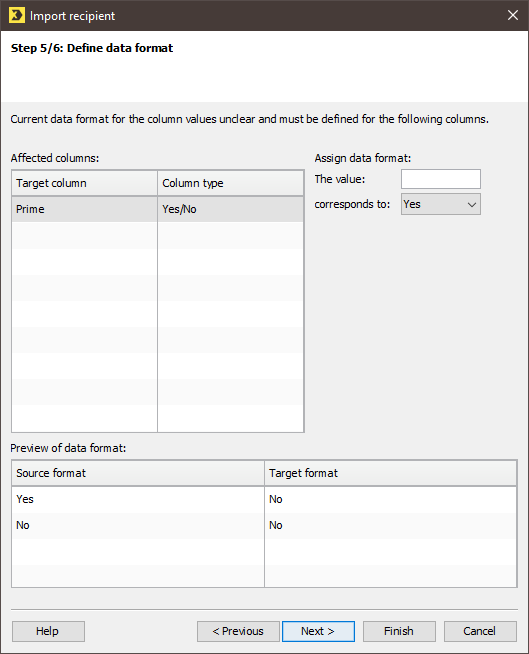
If Inxmail Professional has problems in assigning your source column values to the selected column type of the target columns, then an additional step (Step 4 or 5 Define data format) is displayed in the import dialog.
Step by step
Proceed as follows to define the data format of the affected target columns more precisely:
- Select the source column in the table under Affected columns.
- Define the settings for the data format of the target column under Assign data format.
- Click Next.
- You will be directed to the last step of the import dialog: Import conflicts and special settings.
Inxmail Professional:
2 possible use cases
Depending on your contract, you might use Inxmail Professional in different ways:
 Learn more
-
As part of the Inxmail platform: You use newsletters & campaigns as your main tool for creating and sending newsletters. Inxmail Professional only serves as a recipient database and configuration tool in the background.
We are constantly expanding the functionality of “Newsletters & Campaigns”. Check out newsletters & campaigns section to find out if the feature you are looking for might already be available there.
-
Full scope: You use the legacy tool Inxmail Professional as your main tool for creating and sending newsletters.
Did you not find what you were looking for?
-
Send us your feedback.
