In this step, you specify how the system should handle data that already exists in the recipient table. For example, you can specify that existing recipient data should be overwritten or extended. The settings that you can specify here correspond to the settings for a manual import (see the section Import recipients). Just as for the manual import, separate conflict handling is possible for the values of the Tracking permission column.
In this step, you can also specify whether a notification should be sent by email after the import. This notification can be made dependent on the result of the import.
Step by step
To manage import conflicts, proceed as follows:
-
Open the import in the
 Conflicts workflow step.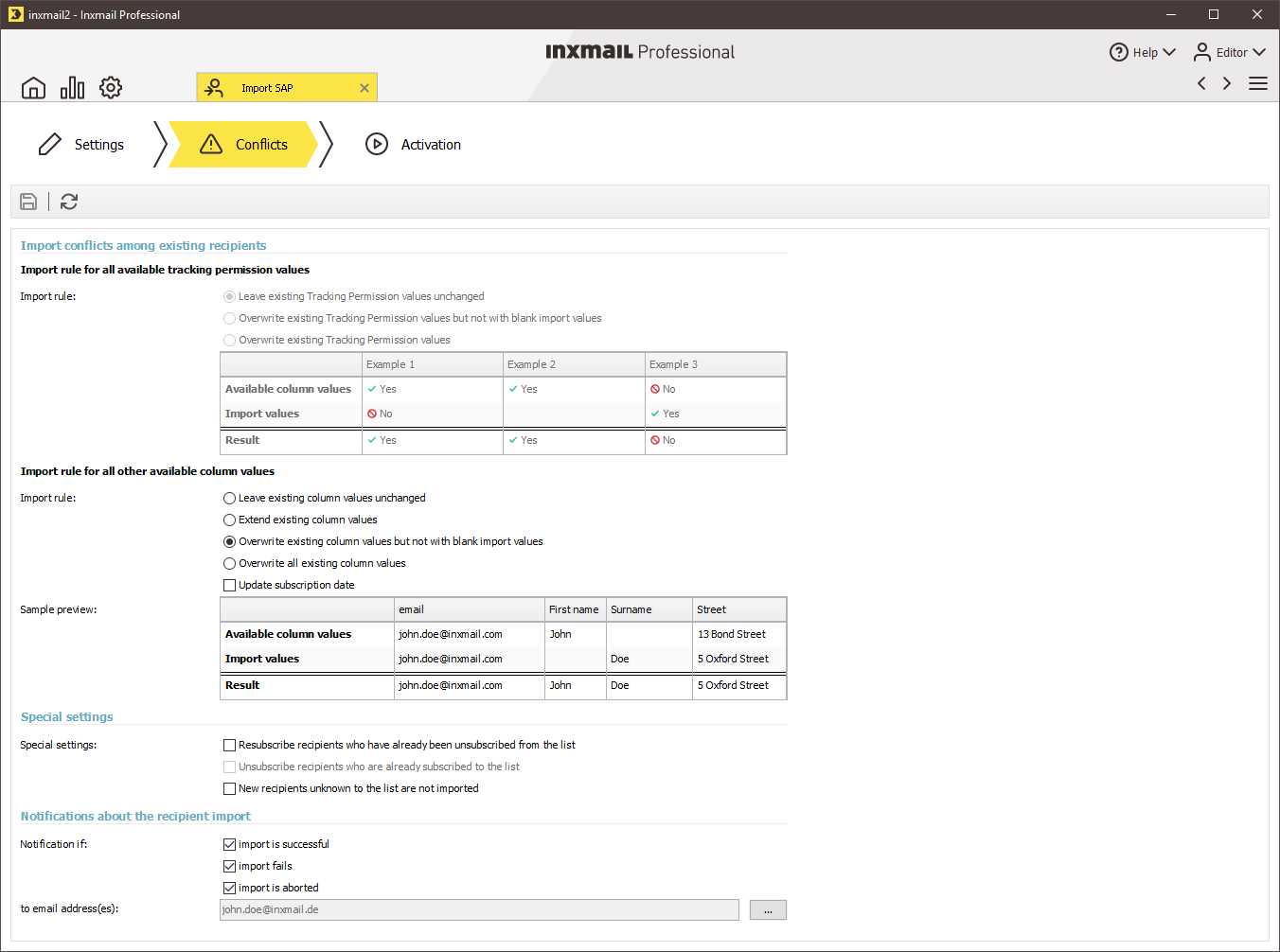
Note: The options for import conflicts for the Tracking permission column are disabled if you have not made any specifications for tracking permission in the
 workflow step. The options for all import conflicts (Tracking permission column and all other column values) are disabled if you are importing data to the Unsubscribed tab of a particular list.
 ‘Import conflicts – tracking permission’ field descriptions
Import rules
Description
Leave existing tracking permission values unchanged
Existing tracking permission values in the recipient data record are retained and are not overwritten.
Overwrite existing tracking permission values but not with blank import values
Existing tracking permission values of the recipient data record are overwritten with the values from the import source. If the import source contains column fields without a tracking permission value, the tracking permission value of the recipient data record is retained.
Overwrite existing tracking permission values
Existing tracking permission values of the recipient data record are overwritten with the values from the import source. If there are column fields in the import source that contain no tracking permission value, the corresponding column fields of the recipient data record are set to the value
 No.‘Import conflicts – all other column values’ field descriptions
Import rules
Description
Leave existing column values unchanged
Columns that exist in the import source and in the recipient table: Existing values in the recipient data record are retained and are not overwritten.
Extend existing column values
Columns that exist in the import source and in the recipient table: Existing values in the recipient data record are retained and are not overwritten. Column fields that contain no values in the recipient data record are filled with the values from the import source.
Overwrite existing column values but not with blank import values
Columns that exist in the import source and in the recipient table: Existing values of the recipient data record are overwritten with the values from the import source. If the import source contains column fields without values, the values of the recipient data record are retained.
Overwrite all existing column values
Columns that exist in the import source and in the recipient table: Existing values of the recipient data record are overwritten with the values from the import source. If there are column fields in the import source that contain no values, the corresponding column fields of the recipient data record are deleted.
Update subscription date
If you select this check box, the date on which recipients were subscribed to the current mailing list will be updated if new data is imported for them.
Note: This check box will only be displayed if you have selected a specific list for the import and not the Global settings.
‘Special settings’ field descriptions
Special
settingsDescription
Resubscribe recipients who have already been unsubscribed from the list
If you select this check box, data of recipients who are currently unsubscribed from the mailing list is also imported. In this case, these recipients are then resubscribed to the mailing list (that is, moved from the Unsubscribed tab to the Subscribed tab).
This check box is only enabled if you are importing recipients to the Subscribed tab of a specific list.
Note: You need the consent of the affected recipients in order to do this.
New recipients unknown to the list or system are not imported
If you select this check box, only existing recipient data is updated in accordance with the import rules. New recipients are not imported.
This check box is only enabled if you are importing recipients to the Subscribed tab of a specific list or to the system list.
Unsubscribe recipients who are already subscribed to the list
You have the option to unsubscribe recipients via an import. The respective recipients are moved from the Subscribed tab to the Unsubscribed tab.
Note that when you import recipient data to the Unsubscribed tab, only the email addresses of the recipients are imported. The recipient table may, however, show other recipient data after the import if these recipients are already created in the system.
Note: The values of the Tracking permission column are lost when recipients are unsubscribed. Furthermore, they cannot be restored in the case that recipients are resubscribed.
This check box is only enabled if you are importing data to the Unsubscribed tab of a particular list.
‘Notifications about the import’ field descriptions
Name
Description
Notification on
Here you can determine if and when you would like to be notified about the result of the import.
to email address(es)
Here you can specify one email address or several email addresses to which the notification about the result of the import should be sent.
Click the
 button to specify one or several email address(es) to which the notifications are to be sent.
Now click the editing area of the dialog box with the mouse.
Enter the email address(es).
- Specify your settings in the fields.
- Save your entries.
- You have managed the import conflicts and specified notifications for the import.
Related topics
Inxmail Professional:
2 possible use cases
Depending on your contract, you might use Inxmail Professional in different ways:
Learn more
-
As part of the Inxmail platform: You use newsletters & campaigns as your main tool for creating and sending newsletters. Inxmail Professional only serves as a recipient database and configuration tool in the background.
We are constantly expanding the functionality of “Newsletters & Campaigns”. Check out newsletters & campaigns section to find out if the feature you are looking for might already be available there.
-
Full scope: You use the legacy tool Inxmail Professional as your main tool for creating and sending newsletters.
Did you not find what you were looking for?
-
Send us your feedback.
