Support-relevant information: This entry is usually only relevant if you contact Inxmail Support. (The maintenance log contains a .zip file of log files detailing system activities.)
Step by step
To save the maintenance log, proceed as follows:
-
Click
 <User name> in the header.
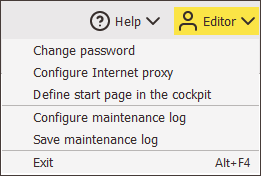
The user menu drop-down list appears.
-
Select Save maintenance log in the user menu drop-down list.
The Save dialog box opens.
The file name for the maintenance log is assigned automatically by Inxmail Professional and is already displayed in the File name field.
- Select a suitable storage location: Make a note of the storage location.
-
Save your entries.
A message box appears. This confirms that the maintenance log has been saved successfully.
- Confirm the message by clicking OK.
-
You have successfully saved the maintenance log.
You can now send the maintenance log as a file attachment.
Inxmail Professional:
2 possible use cases
Depending on your contract, you might use Inxmail Professional in different ways:
 Learn more
-
As part of the Inxmail platform: You use newsletters & campaigns as your main tool for creating and sending newsletters. Inxmail Professional only serves as a recipient database and configuration tool in the background.
We are constantly expanding the functionality of “Newsletters & Campaigns”. Check out newsletters & campaigns section to find out if the feature you are looking for might already be available there.
-
Full scope: You use the legacy tool Inxmail Professional as your main tool for creating and sending newsletters.
Did you not find what you were looking for?
-
Send us your feedback.
